PC Port Forwarding
Technical Specifications
| Latest Release |
3.94 ,
27 Apr 2015 ,
[Change Log, Previous Releases]
|
|
Supported Networking
|
Ethernet, IPv4, IPv6, TCP, UDP. |
|
Traffic Transformation Engine
|
Kernel-mode network driver. |
| Prerequisites |
None.
|
| Supported OSes |
Windows XP SP3, 2003, Vista,2008,2008 R2*,7*,8,8.1*,Server 2012,Server 2012 R2*
*For Windows 2008 R2 and 7, required Service Pack 1 +
KB3033929 (SHA-2 digital signing).
*For Windows 8.1 and Server 2012 R2,
KB2995730 is required.
|
| Recommended Hardware |
1 GHz CPU or faster, modern graphics card. |
| Additional Hardware Required |
None. |
Summary
PC-only TCP/UDP port forwarding (translation) and reflection that is transparent
to any application on the OS. Unlike other software, PC Port Forwarding performs
all operations on a Windows® PC without requiring additional hardware or
complicated setups. This application operates automatically with high performance
and features an intuitive user interface.
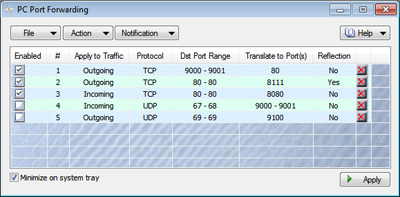
Port Forwarding Overview
Port forwarding is similar to network address translation (NAT), but it only
translates port numbers. To illustrate, two computers on the Internet communicating
via TCP/IP or UDP/IP use ports to identify their respective connection points.
To communicate, each computer must know the other's IP address and port number.
PC Port Forwarding forwards these ports so that when one computer sends data to a
specific port, the data is transparently sent to a different port. Applications are
unaware of this forwarding.
An example scenario for incoming port forwarding is as follows: When a remote
computer sends traffic to the local computer on a specific port (e.g., HTTP port 80),
PC Port Forwarding can be configured to remap the destination port 80 to a
user-specified port (e.g., port 8080). As a result, any application on the local
computer listening on port 8080 will receive the data from the remote computer
that originally sent it to port 80.
Traffic Reflection Overview
In addition to port forwarding, PC Port Forwarding can perform traffic reflection,
but this is limited to outgoing traffic. When an application on the local computer
sends data to a remote server, PC Port Forwarding forwards the ports and loops all
data back to the local computer. This allows the sending application to communicate
with another application on the same computer, under the impression that it is
communicating with a remote server.
It is important to note that even though traffic reflection loops traffic back to the
local computer, the remote server must still have an IP address that is reachable
from the local computer. In other words, the local computer must be able to
determine the appropriate route for sending data to the remote server. Consequently,
if the remote server is on the same subnet as the local computer, that remote server
must be running to confirm that its IP address is directly reachable. This
requirement does not apply to remote servers on other subnets that are reachable
via a gateway.
An example scenario for traffic reflection is as follows: When an application
(e.g., a web browser) on the local computer sends a request to port 80 of a remote
server, PC Port Forwarding forwards the port and loops the data back to, for example,
local port 8111. If the local computer has a web server or another application
listening on port 8111, the web browser will communicate with that local web server
instead of the remote one. The web browser will not know it is communicating with
the local web server. For multi-homed computers, reflection will send the traffic
back to the IP address from which it originated.
Working with PC Port
Forwarding
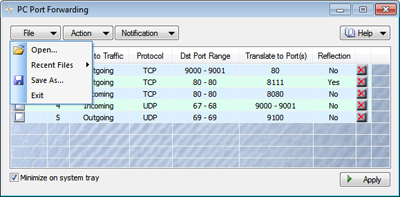
The operation of PC Port Forwarding is based on rules that can be added and
removed from the table in the main window. Adding, removing, or editing
rules can be done via the Action menu or by right-clicking on the
table.
PC Port Forwarding uses the destination port as a basis for internal port
forwarding calculations. The destination port range is displayed in the
table in the “Dst Port Range” column and tells PC Port Forwarding
which ports to forward. For outgoing traffic, the destination port range is a
range of ports on the remote server. For incoming traffic, the destination port
range is on the local computer. The resulting port(s) after translation are
displayed in the “Translate to Port(s)” column. The port range can be
forwarded to a single port (merge operation) or to another port range (shift
operation). For the translation of a port range into a single port,
'Translate to Port(s)' specifies the port to which all ports
from the range are forwarded. For forwarding a port range to another port range,
'Translate to First Port' specifies the lowest port of the
range to translate to.
Once all necessary rules are created, they need to be submitted to the remapping
engine using the Apply button. To stop already applied rules from
performing their function, submit an empty table or a table with all
rules disabled. Whenever a new set of rules is applied, the previous one is
discarded from the remapping engine.
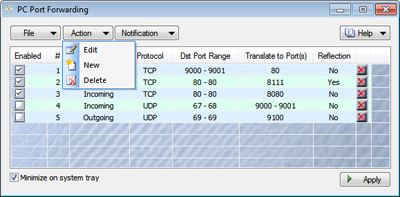
Adding and editing rules is as simple as 1-2-3. First, a new rule needs to be
added using the Action menu. Then, its properties need to be
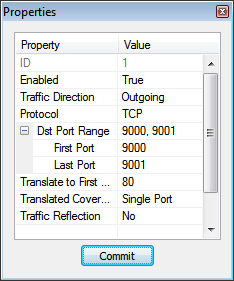
edited.
-
Every rule has a unique ID that is assigned automatically when
the rule is created. It cannot be changed.
-
Each rule can be enabled or disabled. Disabled rules have no effect. All rules
are created as disabled.
-
Traffic Direction indicates which traffic direction to analyze
when looking for the Dst Port Range. When a connection is initiated
from the local computer to an external server, it is outgoing. When a
remote computer accesses the local computer, it is incoming.
-
Dst Port Range specifies the destination port range to analyze.
When the traffic is incoming (from a remote computer), the destination port
range is on the local computer. For outgoing traffic, the destination port
range is on the remote server.
-
Translate to First Port specifies the first port that the
lowest port from the Dst Port Range will become after port
forwarding is performed.
-
Translated Coverage specifies the forwarding of a range of
ports to a Single Port (merging) or to a Port Range (shifting).
-
Finally, Traffic Reflection can be either enabled or disabled.
For simple port forwarding (when a reversal in traffic direction is not needed),
it should be disabled. If it is enabled, the outgoing traffic from the local
computer will be routed back to the local computer without ever hitting the
actual network.
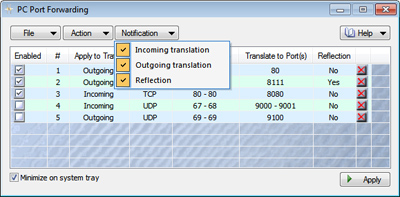
PC Port Forwarding offers notifications for forwarding and reflection actions.
Notifications are issued only once during connection establishment. After
changing notification settings, rules need to be reapplied by clicking the
Apply button.
The created set of rules can be saved to or loaded from a file.
Tutorial Video
Notes:
* Windows® is a registered
trademark of the Microsoft Corporation.

 Shopping Cart

 Multi Port Forwarder
 DNS Proxywall
 Geo Firewall
 Geo Router
 Virtual Network Hub