The Verigio Network Filter driver can perform real-time logging of its network processing into a standard Windows ETL file. This logging may consume substantial CPU and disk resources, depending on the logging flags and the level of detail. We recommend consulting with our technical support to obtain the optimal logging parameters for the specific hardware and software environment.
Real-time logging can be started and managed using the standard Windows program Performance Monitor (perfmon.exe).
1. Start Performance Monitor.
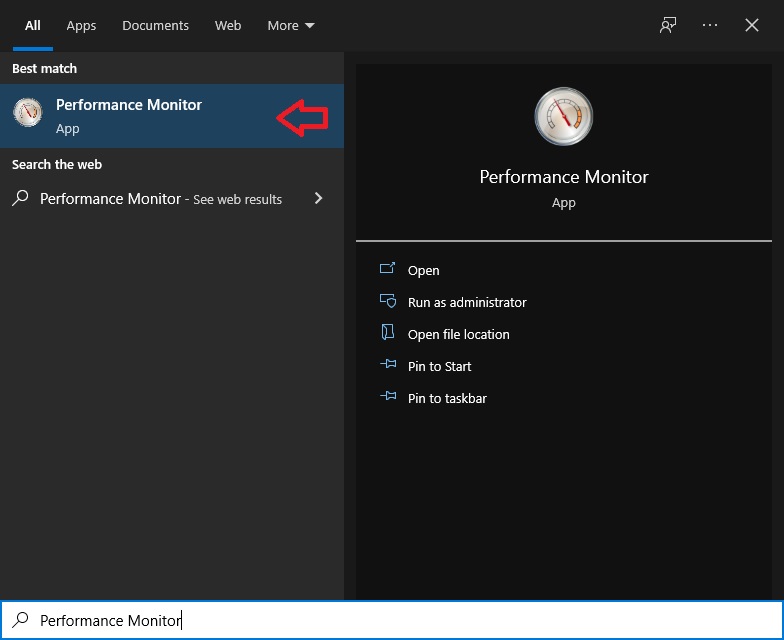
2. Select Event Trace Sessions node from the tree on the left.
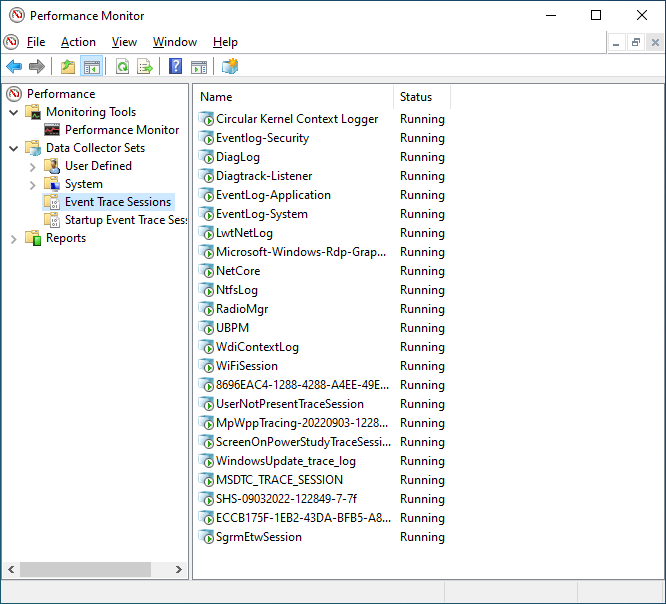
3. Create the new Data Collector Set named "verigio".
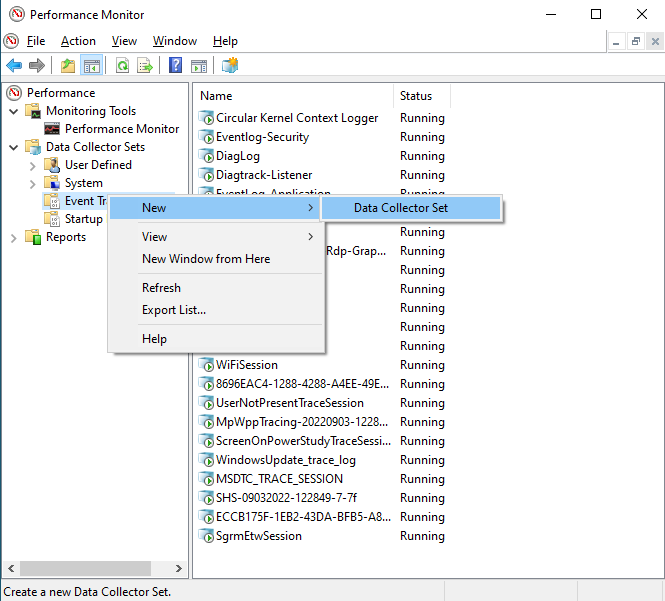
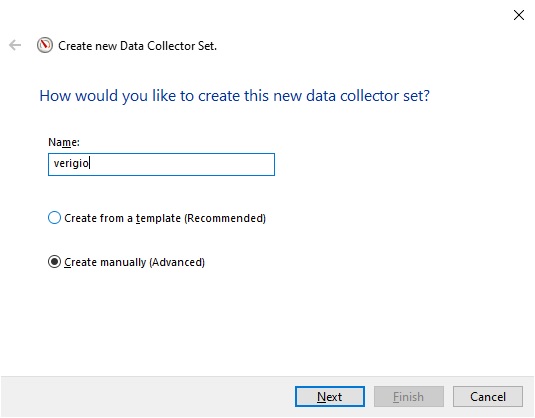
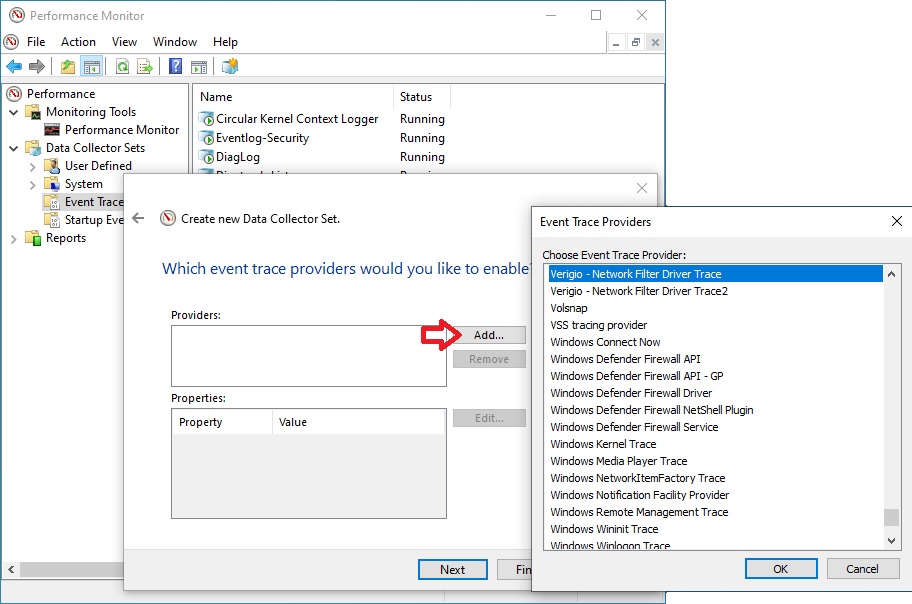
4. Add the "Verigio - Network Filter Driver Trace" and
"Verigio - Network Filter Driver Trace2" event trace providers.
Please note that these event trace providers are only installed as part of Verigio products.
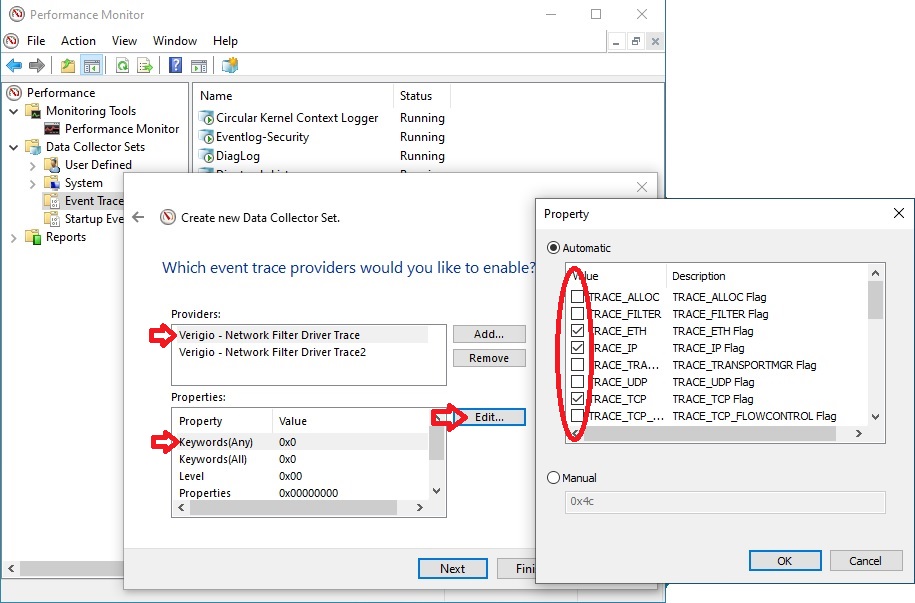
5. For each of the event trace providers, edit the Keywords(Any) that select the event traces to be captured. These settings significantly affect the size of the output log file. Please consult our technical support to obtain the exact keywords for the specific logging needs.
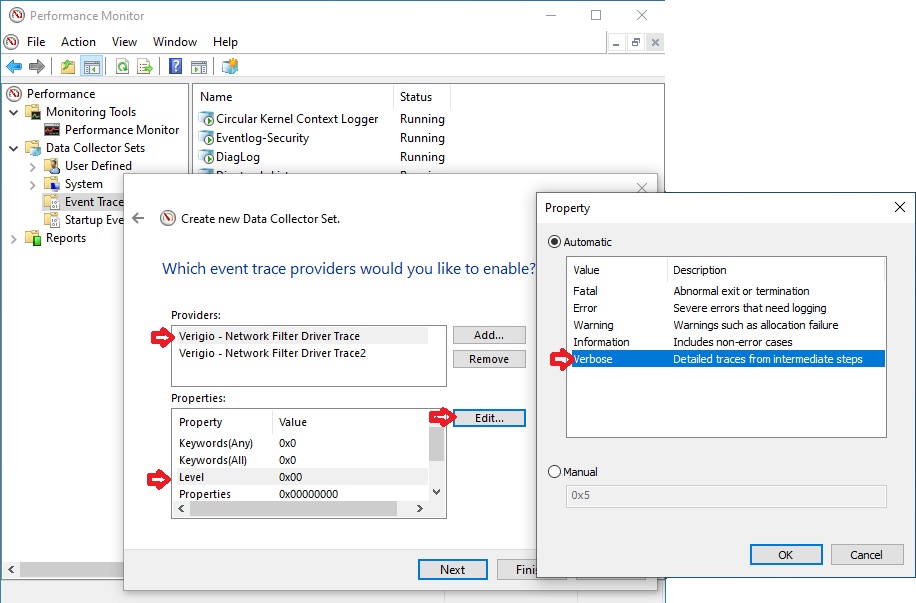
6. For each of the trace providers, edit the logging Level. Set it to Information or Verbose.
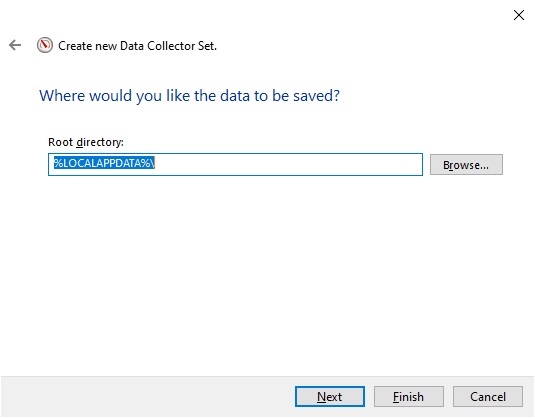
7. Select the log file location.
8. Save and close.
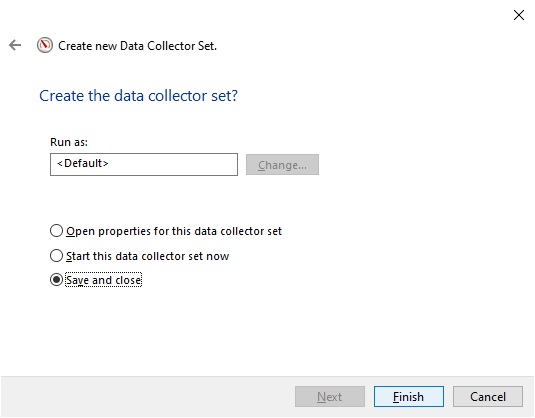
9. Adjust the properties of the new Data Collector Set.
Right-click on the newly created "verigio" Data Collector Set and select
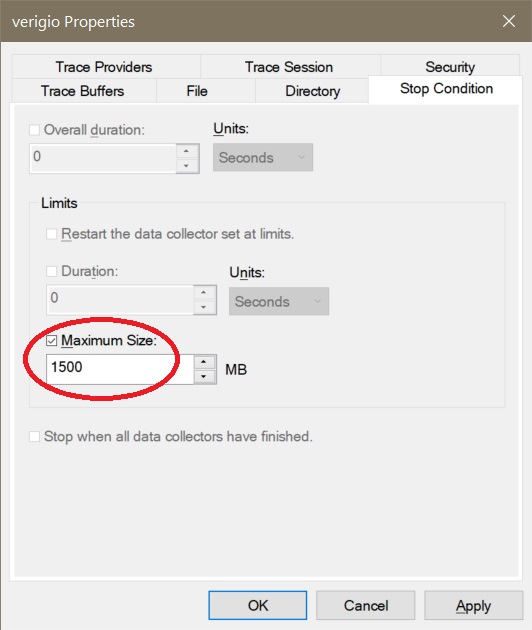
Properties from the context menu. On the Stop Condition tab,
set the Maximum Size to 1,500 megabytes. This will limit the log file to 1,500
megabytes.
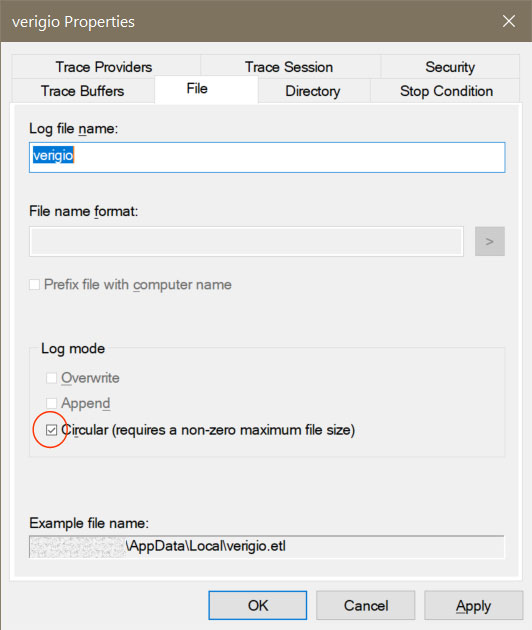
On the File tab, check the box next to Circular (requires a non-zero maximum file size) . This allows the log to continue recording when it reaches its maximum size by overwriting the oldest log records.
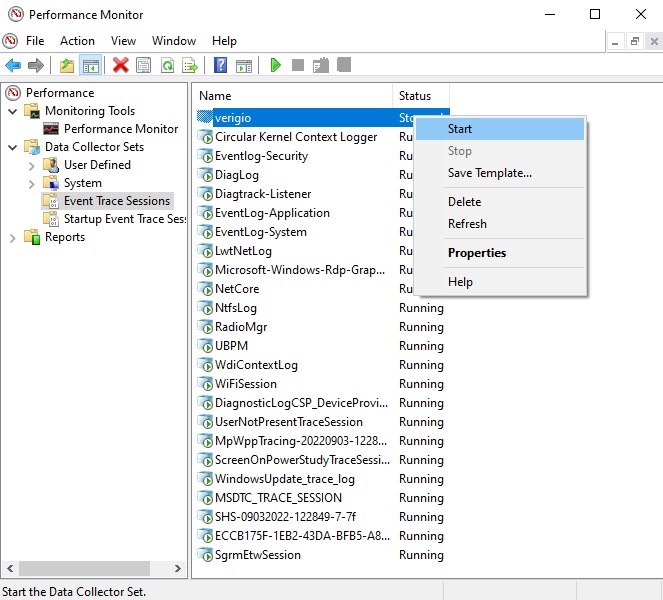
10. Start logging.
Please note that this action begins voluminous real-time logging. Consider starting
it only once everything is ready to reproduce the network traffic that needs to be logged.
11. Once the required network traffic has been logged, stop the logging. The log file with the ETL extension (e.g., verigio.etl) is now located in the folder specified in the "Select the log file location" step.
12. Contact our technical support to obtain the URL for the ETL file upload that is specific to your support ticket.
Last updated: June 12, 2026.

 Shopping Cart

 Multi Port Forwarder
 DNS Proxywall
 Geo Firewall
 Geo Router
 Virtual Network Hub
