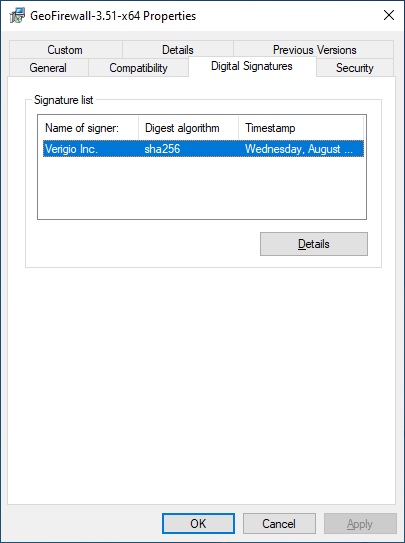
All of Verigio's MSI files and the executables extracted from those MSI files are digitally signed with the "Verigio Inc." digital signature. To verify the digital signature of an executable or an MSI file, perform the following steps:
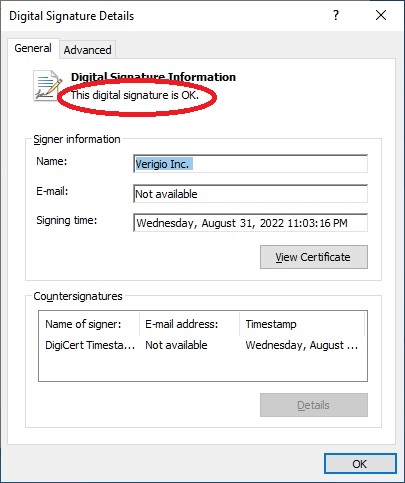
If the phrase "This digital signature is OK" is not shown, the certification path
needs to be examined. To do this, click the "View Certificate" button, then select
the "Certification Path" tab as shown below.
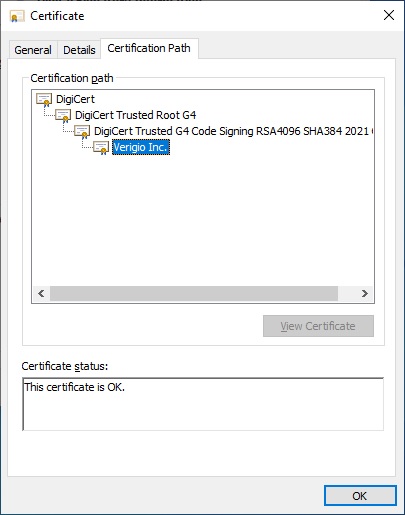 If one of the digital certificates in the path has a red cross mark, it means that the
certificate is untrusted or missing on the system. Most often on older systems, the top
node in the certification path will have a red cross mark. This condition indicates
out-of-date root certificates and will require launching Windows Update to update
them.
If one of the digital certificates in the path has a red cross mark, it means that the
certificate is untrusted or missing on the system. Most often on older systems, the top
node in the certification path will have a red cross mark. This condition indicates
out-of-date root certificates and will require launching Windows Update to update
them.
If any node other than the top one in the certification path has a red cross mark, it is likely that the certification authority is explicitly distrusted by the system's settings. Please contact your system administrator to update these settings.
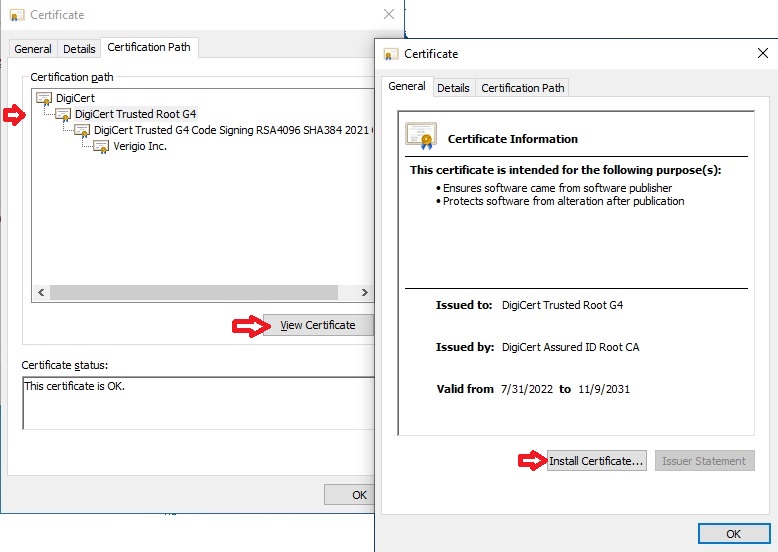
Sometimes, older standalone systems do not have internet access. These are most often testing-related systems. Do not perform this on production systems, as it may compromise their security! The certificates can be installed manually with the following steps:
If the above steps did not help to resolve the digital signature-related issues, please contact our technical support.
Last updated: June 12, 2026.

 Shopping Cart

 Multi Port Forwarder
 DNS Proxywall
 Geo Firewall
 Geo Router
 Virtual Network Hub
