Geo Firewall
Technical Specifications
| Latest release |
4.9 ,
5 Aug 2024 ,
[Change Log, Previous Releases]
|
| Supported networking |
Ethernet, IPv4, IPv6, TCP, UDP. |
|
Traffic filtering engine
|
Kernel-mode network driver. |
| Prerequisites |
.NET 4.5.2, up-to-date root certificates (otherwise startup may be delayed by about 2 minutes).
|
| Supported OSes |
Windows 7*, 8, 8.1, 10, 11, Server 2008 R2*, Server 2012, Server 2012 R2, Server 2016, Server 2019, Server 2022.
*For Windows 2008 R2 and 7, required Service Pack 1 +
KB3033929
(SHA-2 digital signing).
*For Windows 8.1 and Server 2012 R2, KB2995730 is required.
|
| Recommended hardware |
CPU 1GHz and above, modern graphics card. |
| Additional hardware required |
none |
Overview
Few people realize that many security threats originate from a limited number of countries
that ignore cyber threats until they reach dangerous levels. In such countries, web servers are
frequently compromised and infected with malware. Consequently, visitors risk
infection. Often, Internet users are unaware of server locations or where web links
lead to. Geo Firewall shows which countries are being accessed and lets you block geographical
regions, individual countries, and custom networks.
Until recently, geographical (Geo-IP) blocking was only available to large companies with
sophisticated and expensive hardware firewalls. Now, Geo Firewall brings this security to
laptops, desktops, and cloud servers. Once rules are set, the computer is protected from
accessing blocked territories. Geo Firewall lets you separate trusted countries from
untrusted ones and is compatible with most other security software. The more defense
layers, the harder it is to breach.
Geo Firewall
IMPORTANT: When used on a Virtual Machine, accidental rule changes may affect
Remote Desktop (RDP) traffic and lock out a user. For instructions on restoring RDP
connectivity, see KB article Restoring Remote Desktop
(RDP) connectivity to an Azure VM after a user lockout.
Geo Firewall's operation is straightforward. The tree-like list contains geographical
territories for creating rules: checked (blocked) or unchecked (allowed). The toolbar and
menu provide operations for these territories. The rules apply to IPv4/IPv6, TCP, and UDP
network protocols.
Geo Rules
A checkmark on a geographical territory designates it as blocked. Searching for individual
countries by name among 250+ territories can be daunting. The text search bar helps by
showing only countries with names containing specific text. Click  on the
toolbar, and only matching countries will remain visible.
on the
toolbar, and only matching countries will remain visible.
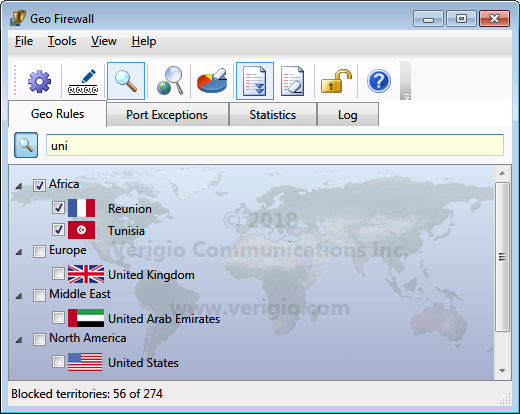
Rules are automatically applied after every change with a default 1-second delay. This
delay can be changed in Settings to allow more changes before the wait cursor appears.
The program runs as a Windows service, so rules are in effect while the "Geo Firewall"
service is running. The last rules are automatically loaded on service start.
To protect rules from accidental changes, activate read-only mode with the  button.
Port Exceptions
Geo Firewall rules let you block or allow entire countries and networks. There are cases when
computers from blocked countries may need access to a specific range of TCP or UDP ports.
In such cases, Port Exceptions allow you to specify exclusions from
blocking rules. Each Port Exception can have multiple port ranges that permit network
traffic to local TCP/UDP ports. Each Port Exception can also be associated with multiple
geographical territories, but a territory can only be associated with a single Port Exception.
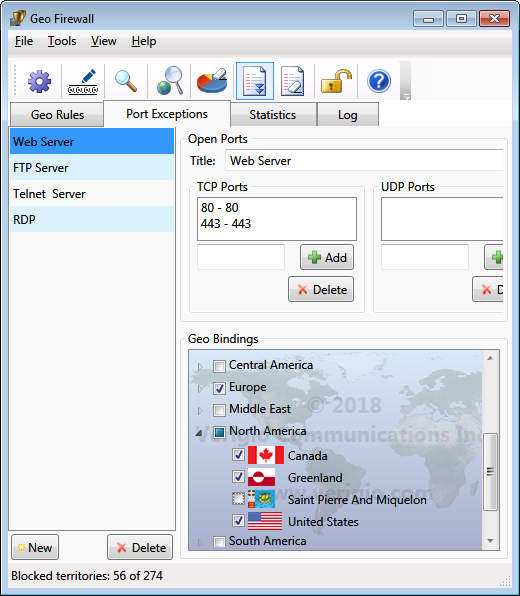
Check marks on countries in Geo Bindings denote the presence of the binding (association).
The Geo Bindings are persistent and do not change when associated countries change between blocked and allowed.
However, they have effect only on countries that are blocked (countries that are allowed allow all traffic anyway).
Reserved IPv4/IPv6 Networks
In addition to geographical territories, Geo Firewall understands and works with reserved
networks. These are used by computers to communicate with other devices on local networks.
Reserved networks are found under [Reserved Networks IPv4] and
[Reserved Networks IPv6].
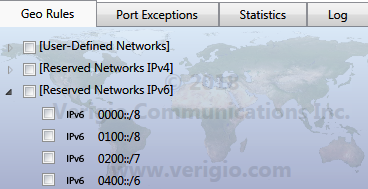
Reserved networks are predefined. While they can be blocked or allowed, their definitions
cannot be edited. It is highly recommended not to block them to avoid unusual networking issues.
Some may ask: what happens if [Reserved Networks] are blocked? Nothing
dangerous. The computer just won't be able to reach other computers around it to obtain a
new IP address or resolve domain names.
User-Defined Networks
In addition to predefined geographical territories and reserved networks, Geo Firewall lets
you add User-Defined networks, which appear under [User-Defined Networks].
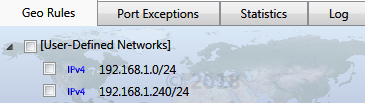
To edit user-defined networks, click  on the
toolbar. Since IPv4 and IPv6 networks have different address formats, they are edited separately.
on the
toolbar. Since IPv4 and IPv6 networks have different address formats, they are edited separately.
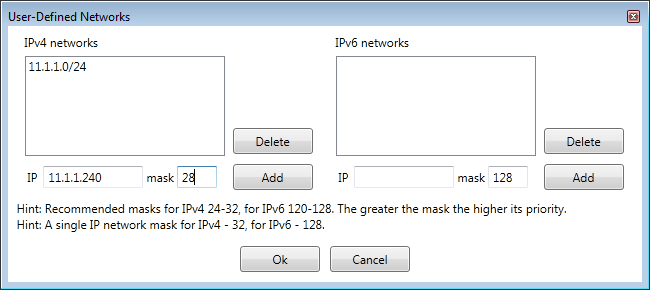
When editing, user-defined networks can overlap with other user-defined networks or
predefined geographical territories. In such cases, rule precedence determines which
rules apply. More specific networks (those with a greater network mask) always take
precedence over less specific ones.
For example, the network 192.168.1.1/32 is more specific than 192.168.0.0/16; thus,
rules for 192.168.1.1/32 take precedence for traffic to 192.168.1.1.
A common way to unblock a specific network within a blocked country is to create an
unchecked user-defined network or add it to the whitelist.
IP Geo Lookup
 helps to determine which network rules take precedence.
More specific networks (those that take precedence) are listed at the top.
helps to determine which network rules take precedence.
More specific networks (those that take precedence) are listed at the top.
Statistics
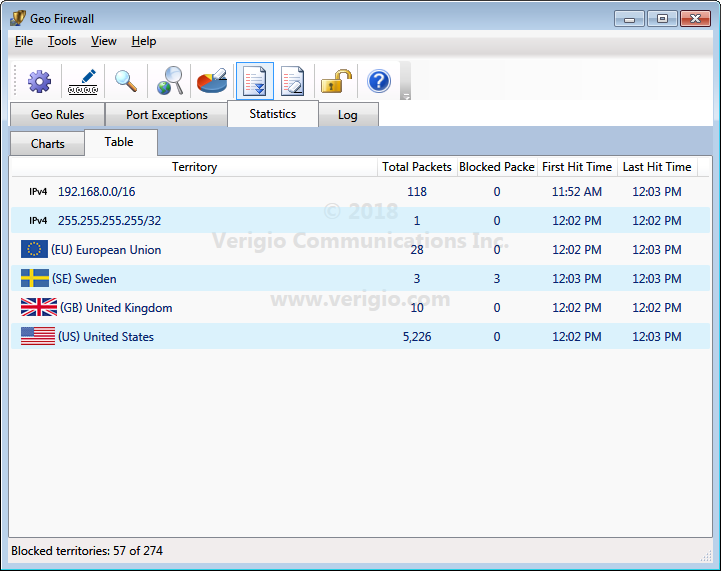
Statistics make it easy to understand traffic destinations. Live statistics are shown
as a chart and a table. Data is refreshed according to the refresh interval in
Settings. Data is also retired based on Remove Inactive Items settings.
Statistics can be adjusted to include or exclude non-country records.
Collecting and visualizing statistical data impacts CPU performance. On laptops and
desktops, the difference may be negligible. However, on servers with weak graphics cards
at high CPU utilization, disabling statistics or increasing the refresh interval may
significantly improve the overall system performance.
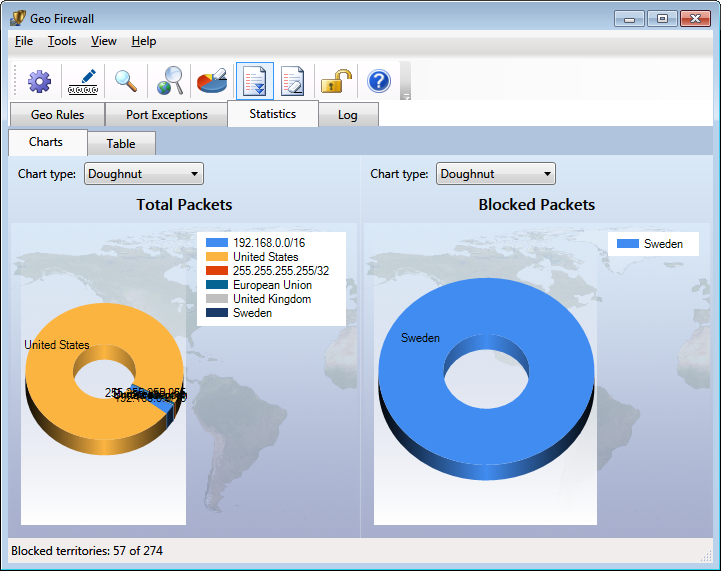
The data from the live statistical chart can also be viewed as a table.
Log
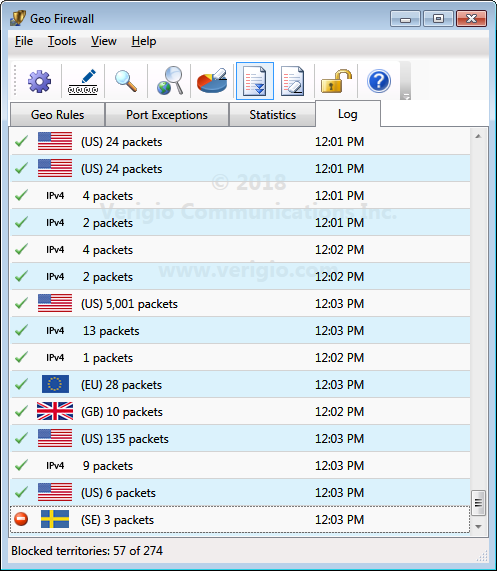
Logging helps track the historical performance of rules. Logging can be directed to a
CSV log file with daily rotation. The visual log's refresh rate can be adjusted in Settings.
Like statistics, logging impacts CPU performance. Disabling it or increasing the refresh
period may significantly improve overall system performance.
Settings
Geo Firewall settings can be changed via Settings
 .
.
Geo Rules settings
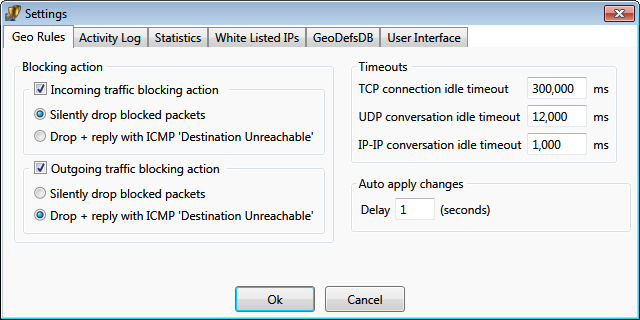
Blocking Action specifies the action for blocked traffic, applied to all blocked
territories and networks. If unchecked, blocking for that direction is disabled.
-
Silently drop blocked packets - it forces to simply discard packets intended to/from blocked territories
-
Drop + reply with ICMP 'Destination Unreachable' - it forces to discard packets,
and also to reply to senders with the indication that the destination is unreachable.
This action is performed for every blocked packet.
This setting is recommended only for outgoing traffic to help local programs to faster realize that the destination
is inaccessible.
The well known "ping" utility shows the difference from the silent packet drop
mode.
Geo Firewall is filtering connections and conversations over the network. The traffic can be allowed in one direction, but
prohibited in the opposite direction.
Whenever the traffic starts in the allowed direction, Geo Firewall automatically allows traffic in directly opposite
direction only
to that specific communication point.
Timeouts specify how long the opposite direction for the connection point is open.
Example: Outgoing traffic to 'Fiji' is allowed, but the incoming traffic is blocked. In such case,
a computer with Geo Firewall connecting to a website (via TCP) on 'Fiji' would be able to receive
replies from 'Fiji' website until no packets are exchanged (the silence) for "TCP connection idle timeout" milliseconds.
Example: Outgoing traffic to 'Fiji' is allowed, but the incoming traffic is blocked. In such case,
a computer with Geo Firewall issuing a 'ping' to a server on 'Fiji' would be able to receive
a reply within 'IP-IP conversation idle timeout' milliseconds.
Activity Log settings
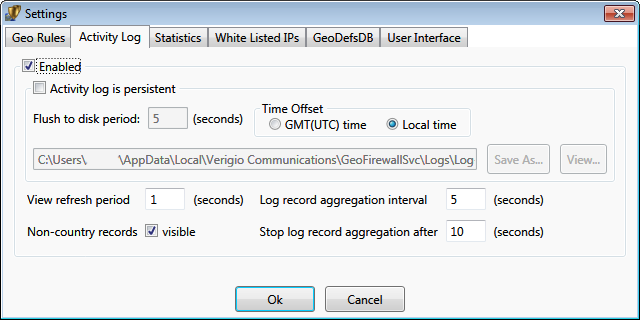
The activity log can be enabled or disabled. Disabling it significantly improves system
performance by reducing graphics redraws. The log can be persistent (stored to
disk) as a CSV text file. A log file contains records for a single day (until the midnight). Log files
are automatically named with their creation date. By default, persistent logs are stored
in a system location accessible only by administrators. The location is recommended to be changed.
The timezone for events stored within the persistent log file can be GMT or local system time.
-
When multiple events (allowing or blocking) occur for the same territory, they are aggregated and reported as a number
of events of a certain type for the territory.
Log record aggregation interval specifies the interval for consecutive records
to be aggregated. Aggregation continues until the time between records exceeds the
interval. It also prevents flushing those records to disk while aggregation is ongoing.
Example: With a 5-second aggregation interval, all records
arriving within 5 seconds of each other are aggregated and displayed at once.
-
Since events could keep happening within the aggregation interval, log records might not
be flushed to disk for a long time. Stop log aggregation after stops aggregation
for existing records and starts a new aggregation for upcoming records. It specifies the maximum duration for each aggregation from its beginning.
Statistics settings
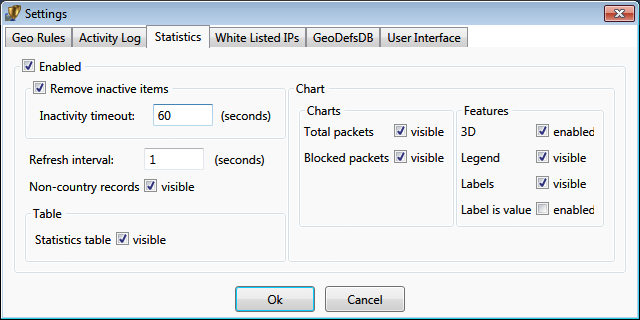
Statistical data can accumulate over time. It is aggregated similarly to log events.
Inactivity timeout removes events from live statistics that have not reoccurred
within the specified timeout.
Whitelist settings
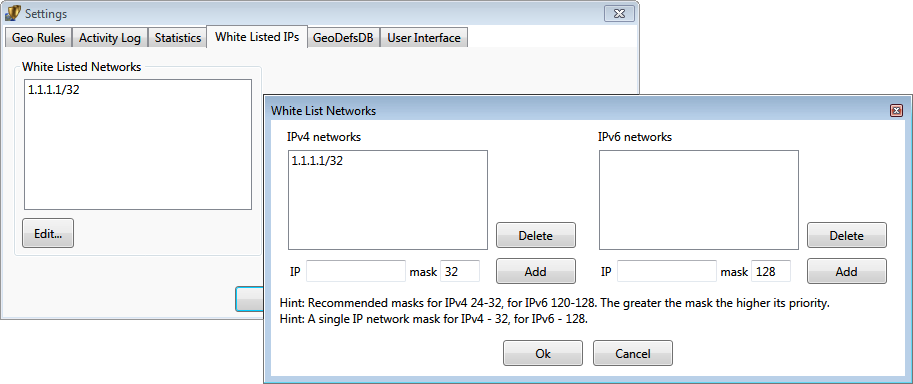
The network whitelist specifies networks that will never be blocked. It usually contains
IP addresses of local computers or administrative servers.
The whitelist can contain DNS names in two formats:
- Simple - Server name only. Example: verigio.com.
- Pattern - Server name with subdomains. Example: *.verigio.com.
All DNS names are automatically resolved to IP addresses for filtering. Simple DNS names
are resolved periodically per settings. Patterns can have a single leading asterisk and
are resolved by monitoring unsecure (UDP-based) DNS traffic.
Geo Definitions Database (GeoDefsDB) update settings
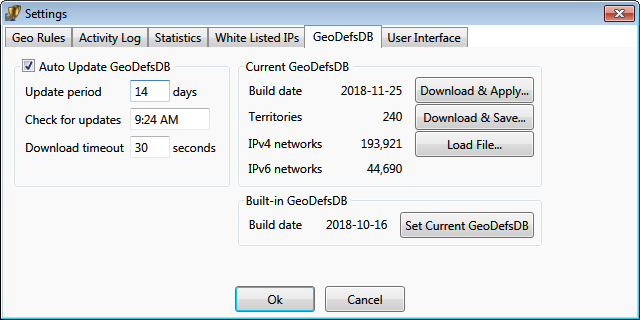
The geo-definitions (Geo-IP) database maps geographical territories to IP addresses.
This database is in a proprietary format. The application contains an embedded geo-definitions
database. Updates to the database can be downloaded from our website via
Settings dialog. Depending on the application edition, the database can auto-update periodically.
The exact time of day for an update is chosen randomly during installation.
Downloaded databases are stored locally and can be re-applied
manually if auto-update is disabled.
User Interface settings
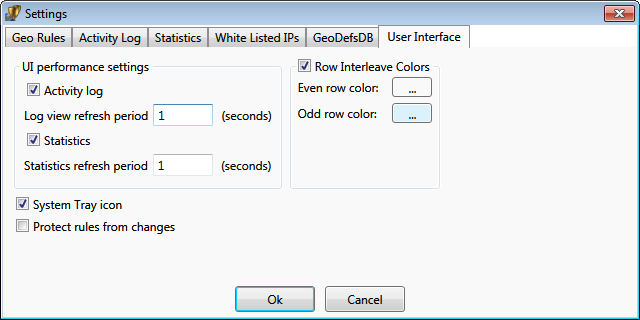
Notes:
* Windows® is a registered trademark of the Microsoft Corporation.

 Shopping Cart

 Multi Port Forwarder
 DNS Proxywall
 Geo Firewall
 Geo Router
 Virtual Network Hub